HubSpot Note Taker: CRM Sync, Plans and Team Limits
HubSpot note taker review: native CRM sync, Salesforce connector limits, eligible plans and seats, and recording and credit limits for your team.
Updated · Sources and user reports
Posted by
 AI Sales Research Team
TL;DRMeeting notes, kept in HubSpot.
CRM sync. Summaries, recordings and transcripts stay in HubSpot. Other CRMs need a separate connection; full recordings or transcripts may not transfer.
Plans and seats. Sales Hub or Service Hub Starter needs a Core seat; Professional/Enterprise need a Sales or Service seat per user.
Team cost. Budget for seats, any required onboarding and usage. Custom-field processing uses HubSpot Credits.
Recording limits. Up to 40 meetings per user per day, 3 hours each. Confirm monthly coverage separately; HubSpot’s Sales Professional hour limits conflict.
Mobile recording and external sharing have separate access requirements.
Where should you start with HubSpot Notetaker?
- You need a record of customer conversations. Start with recordings and summaries, then check that each meeting is associated with the right contact and deal.
- Your team works across more than one CRM. Verify the connector and the exact meeting data that reaches the other system before relying on it.
- You want everyone on the team to record calls. Confirm each person's assigned seat and access, then check daily, per-meeting and monthly usage separately.
- You want to automate updates across the team. Review approval settings for each field, confirm access for every user and budget for any custom-field processing.
What does HubSpot Notetaker save in HubSpot CRM?
HubSpot Notetaker keeps recordings and transcripts, adds editable summaries, and suggests follow-up tasks and field changes. Suggestions have their own review and approval steps.
Official sources were checked on October 30, 2026. HubSpot's Notetaker guide, revised October 28, documents bot attendance in Zoom, Google Meet and Microsoft Teams. Setup requires a connected calendar and recording settings. HubSpot Notetaker documentation
A CRM record holds a contact, company or deal (HubSpot's term for a sales opportunity). Properties are fields such as closing dates. Activities are logged meetings, calls and similar interactions.
Summaries preserve the conversation for the next person. HubSpot generates a summary after processing the meeting. Its current instructions let you edit that summary and add internal notes, with edits saved automatically. You can open the review from a meeting record or an associated CRM record. This is useful for a handoff, provided the summary captures the buyer's actual decision and unresolved questions. Summary and review instructions
Suggested next steps still need to become tasks. If a buyer asks for a proposal by Friday, a sentence in the summary doesn't assign the work. HubSpot's documented action is to select Create task for a suggestion and edit the resulting task. During a pilot, check the owner and due date as well as whether the action appeared. Task creation instructions
HubSpot Hacks' May 2025 beta walkthrough at 3:07 shows the review screen and CRM associations; at 4:08, the author explains suggested next steps. The demo uses a self-call, so it illustrates the workflow without establishing sales-call accuracy or current plan access.
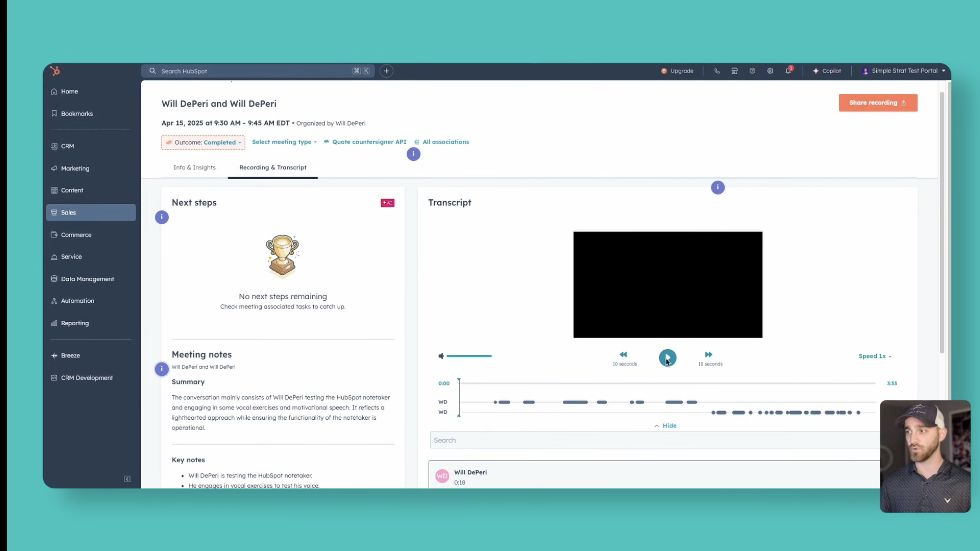
Field updates have their own approval controls. HubSpot's smart data capture feature suggests values for configured deal, call and meeting fields. An admin can require manual review or allow automatic approval separately for each field. Call outcome and Meeting outcome use automatic approval by default. The review interface can show the moment in the transcript behind a suggestion, which gives the reviewer something concrete to check. Smart data capture settings
For web meetings, field suggestions require at least 60 seconds and two speakers, so a brief self-call won't test this feature. Video meetings recorded by Notetaker create meeting records as of August 31, 2026; check older automations that expect call records. Field suggestions and record types
Start with manual review of fields that affect reporting: a possible date mentioned by a buyer isn't necessarily an agreed deadline. Check suggestions against the conversation before allowing automatic updates. Our HubSpot Sales Hub overview covers the wider CRM.
Connect the calendar your team uses for meetings. Google and Office 365 are supported. Exchange connects to HubSpot's scheduling tool, but its events don't sync into HubSpot as calendar events; check your booking process before relying on automatic bot attendance. Calendar connections
If your video platform already records meetings, check its integration. Supported apps can send recordings and transcripts into HubSpot without its bot attending. App requirements still apply; this import doesn't set up onward delivery to another CRM. Incoming recording and transcript sync
Mobile Notetaker can record your in-person meetings. Record offline, then link the meeting to CRM records once online. It requires Sales Hub or Service Hub Professional/Enterprise and a Sales or Service seat; Starter access to the web bot doesn't establish mobile eligibility. Mobile recording
Use an external link when someone needs the recording. Sales Hub or Service Hub Professional/Enterprise users with the required seat and permissions can share admin-approved recordings, transcripts or summaries by link or email. Anyone with the link can view the selected material until it expires, after seven days by default, or you revoke it. External sharing
Which CRMs does HubSpot Notetaker sync with?
HubSpot Notetaker saves meeting results in HubSpot CRM. Other CRMs require a separate connector or custom development. These are selected examples, not a complete integration directory.
| CRM destination | Connection | What to expect and check |
|---|---|---|
| HubSpot CRM | Built-in Notetaker workflow | Recording and transcript review, summaries and follow-up actions associated with HubSpot records. Notetaker guide |
| Salesforce | HubSpot-Salesforce connector | Supports selected HubSpot activities. Confirm the Notetaker text and links you need; a synced meeting doesn't guarantee that its full transcript or recording transfers. Activity sync documentation |
| Microsoft Dynamics 365 | HubSpot-Dynamics connector | Maps meetings to appointments and supports notes and tasks. Check which Notetaker text and links appear in those records. Dynamics sync guide |
| Pipedrive | HubSpot Data Sync connector | Activity sync requires Data Hub Starter or higher. The listing doesn't specify which Notetaker results transfer. Pipedrive connector |
| Zoho CRM | HubSpot Data Sync connector | Contact, company and deal sync is documented. Meeting-data support needs clarification; see the Zoho details below. Zoho connector |
| Custom destinations | Recap API plus a custom connection | A developer can retrieve summaries and suggested actions, then write them to matching records in another CRM. Recap API |
The Zoho connector lists fields for sync in either direction. Meetings include the title, description, times, attendees and responsible user. Notes include text, date, responsible user and linked CRM records. Tasks include title, description, deadline, status and person assigned; deals include description, amount, close date and next step. It doesn't confirm that Notetaker summaries, transcripts or recording files transfer. Zoho field mappings
The page also says activities won't sync, contradicting its field lists. Confirm your required fields with HubSpot before relying on this connection. Smart Transfer imports data into HubSpot; it doesn't establish exports to Zoho. Custom field connections require Data Hub Starter or higher.
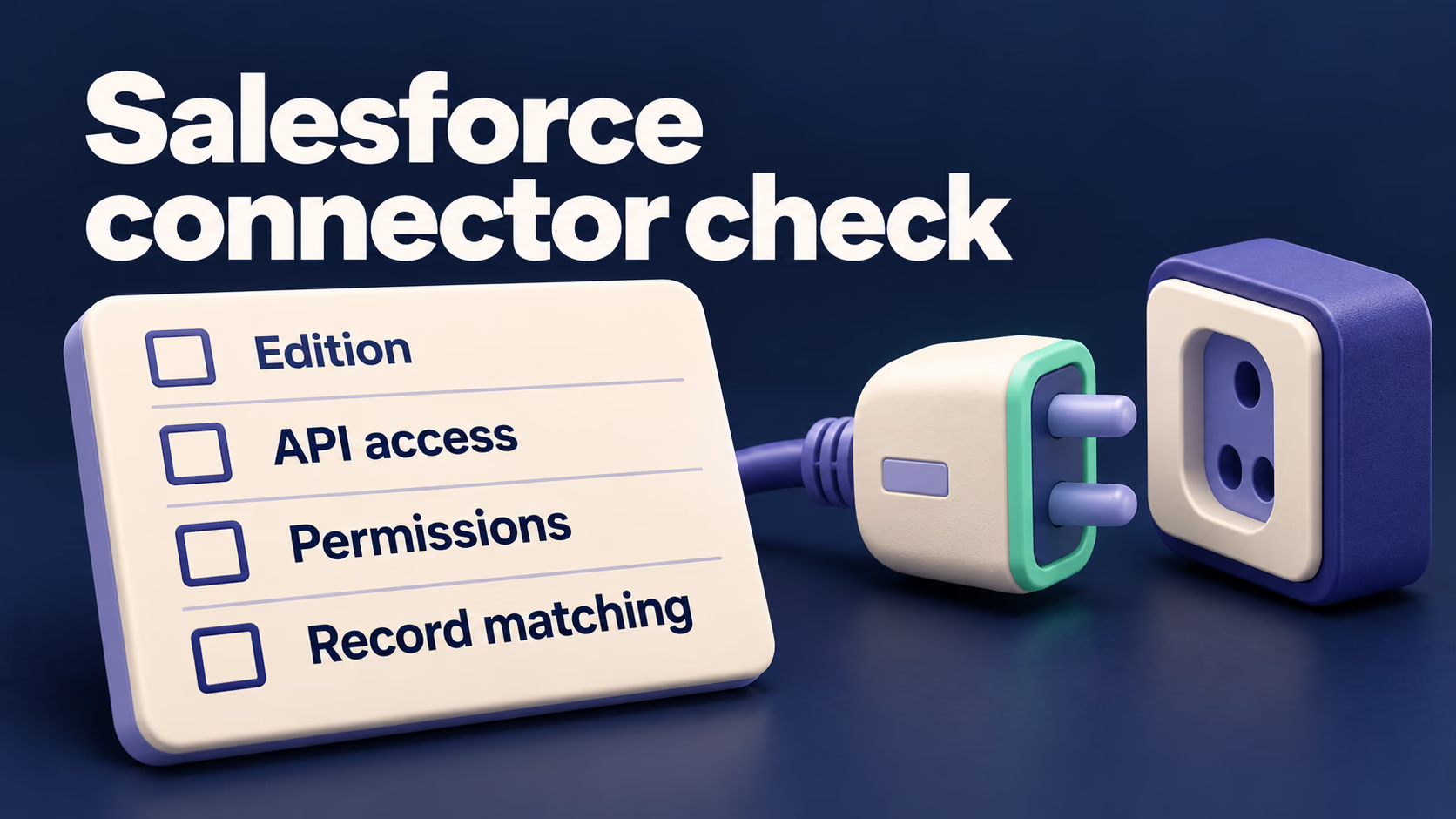
Check Salesforce connector access separately from Notetaker. You'll need a qualifying Professional or Enterprise HubSpot subscription and eligible Salesforce access. Starter access to Notetaker doesn't include this connector. HubSpot-Salesforce requirements
The Salesforce connector's one-way Timeline sync sends supported events, including meetings and notes, as Salesforce tasks. Two-way Activity sync supports tasks, sales emails, calls and meetings. Supported activity types
With Timeline sync, sync the contact first; meetings and notes from before that sync won't be copied. An inactive owner, the user responsible for the activity, can also block sync. Sync timing and ownership
Decide which fields should update in Salesforce. If Notetaker changes a HubSpot deal field, check which Salesforce field receives that value and which system can overwrite it. Field connections, record owners and activity sync have separate settings. Salesforce mapping guidance
HubSpot Embed lets you view HubSpot data inside Salesforce. Users still need a HubSpot login and access to the records. This window shows HubSpot timelines and fields; it doesn't mean those values have been copied into Salesforce. HubSpot Embed requirements
Test one meeting linked to a known contact and deal. In the other CRM, check for the summary text, a working recording link and any task you expected to create. Inspect a field that should have changed. A calendar entry alone doesn't confirm those results.
The Recap API gives developers access to meeting results. It returns summaries and suggested actions after processing, without full transcripts or recordings. Actions name people; a developer must match them to CRM users and create any tasks. Recap API response
This API requires Sales Hub or Service Hub Professional/Enterprise. Sending its results to another CRM would require a custom integration, so include development in the budget. API availability
Which HubSpot plans and seats include Notetaker?
Notetaker is available with Sales Hub or Service Hub Starter, Professional and Enterprise. Each user needs a seat, meaning individual subscription access. Check advanced field features before upgrading.
| Sales Hub or Service Hub plan | Required seat | Cost for three users (USD) |
|---|---|---|
| Starter | Core seat | $60/month ($20 per person). |
| Professional | Sales or Service seat | $300/month ($100 per person), plus $1,500 onboarding. |
| Enterprise | Sales or Service seat | $450/month equivalent ($150 per person), paid annually; $3,500 onboarding. |
| Flexible seats-and-credits contract | Contract-specific seat types | Use that contract's prices and included credits. |
Sources: Notetaker access requirements and standard catalog prices. Onboarding is a one-time charge for new subscriptions. Prices exclude taxes and extra usage; discounts may apply. Existing customers should budget for additional seats and usage.
Three new Sales Professional users cost $5,100 in year one: 3 × $100 × 12 months, plus $1,500 onboarding. Monthly payments still require a one-year commitment. Annual payment at $90 per person/month brings the total, including onboarding, to $4,740. Sales Hub billing options
HubSpot Credits measure usage when processing custom fields. Analyzing one transcript for one field your team added costs 10 credits. Reprocessing can use more credits; standard fields use none. Processing rules, credit rates
Standard Sales/Service plans include 500 credits monthly on Starter, 3,000 on Professional or 5,000 on Enterprise, shared across the account's tools. Adding users doesn't multiply this allowance, and buying several products doesn't add their allowances together. Unused credits expire monthly; flexible contracts have their own allowances. Included credits
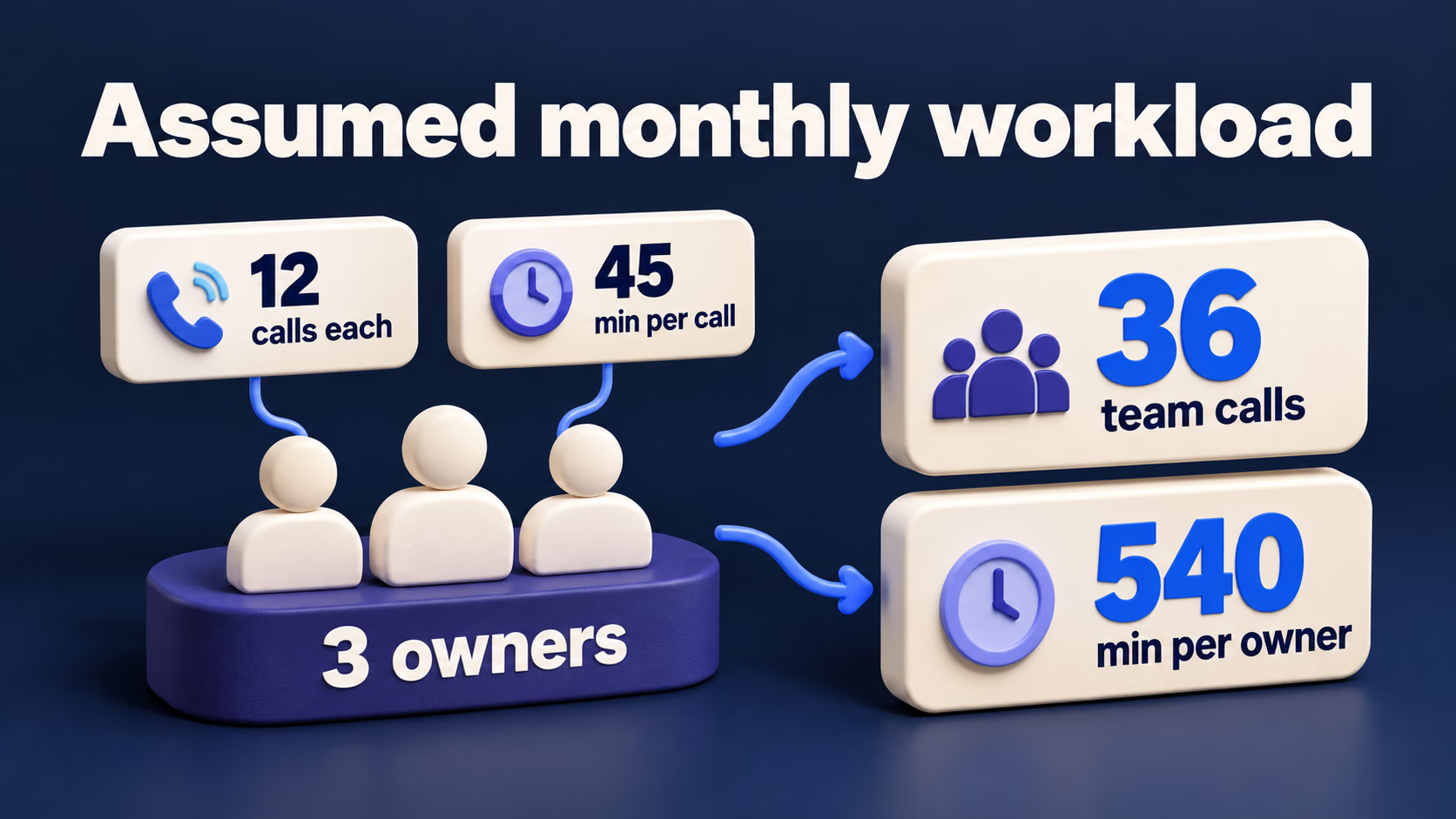
Assume 12 separate 45-minute meetings per person monthly: 36 meetings, 540 minutes per person and 1,620 team minutes. Processing those transcripts for five custom fields once each uses 36 × 5 × 10 = 1,800 credits. If 1,800 of the included 3,000 credits remain, no extra purchase is needed. These are planning assumptions, not measured results.
With no included credits left and pay-as-you-go billing enabled, those 1,800 credits cost $18 at $0.01 each. Check your balance and billing settings under Account & Billing → HubSpot Credits. Credit packs and automatic upgrades have different commitments. Credit billing controls
What limits should your team check?
The most consequential limits concern which meetings qualify, whether the bot gets admitted, how long it stays and who has access. Check these before judging the quality of the resulting notes: a missed recording leaves nothing useful to review.
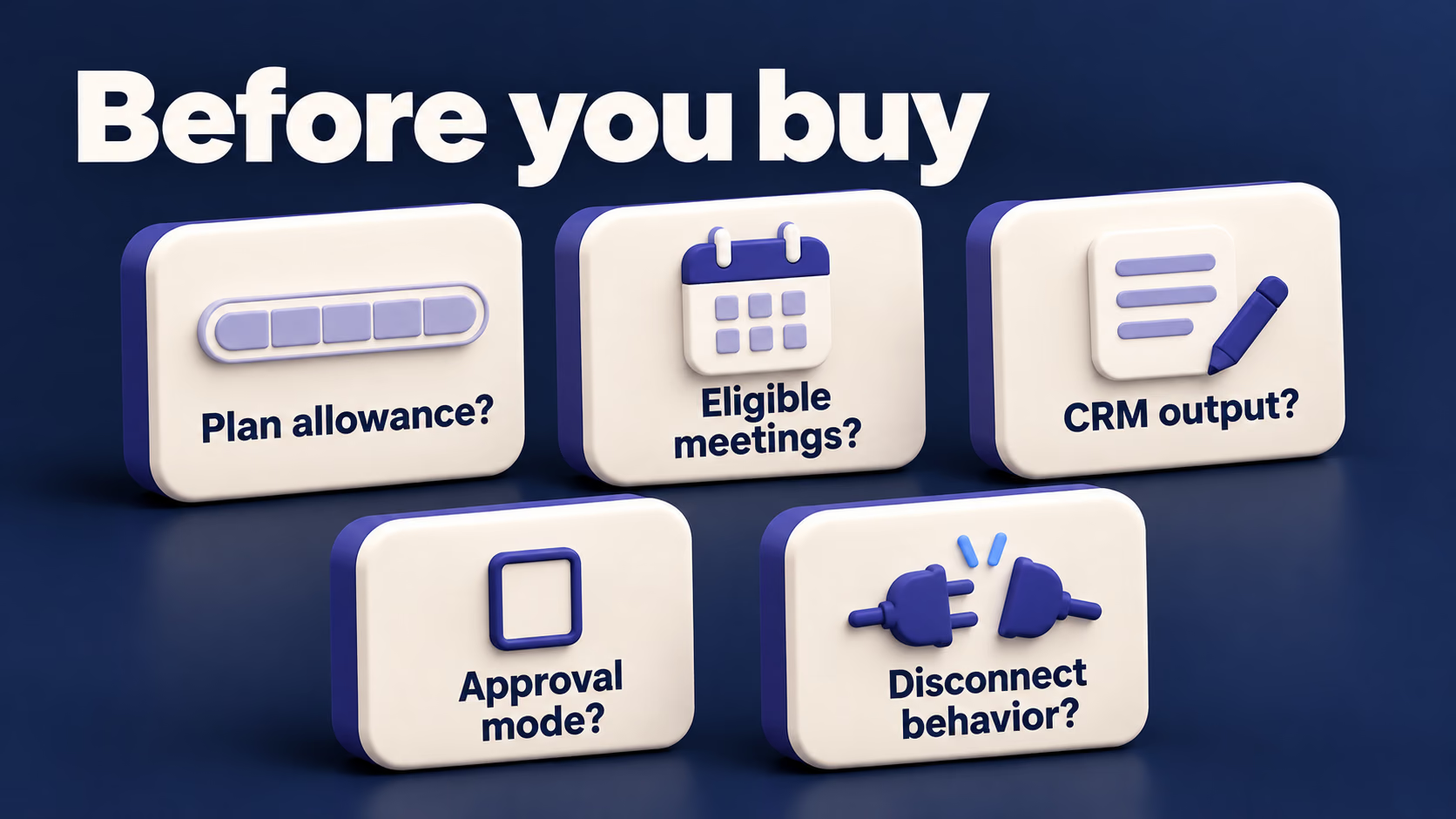
Meeting eligibility comes before automatic joining. HubSpot's documented criteria require a meeting stored in HubSpot, a Google Meet, Microsoft Teams or Zoom location, and at least one existing CRM contact whose email domain differs from the HubSpot account's domain. A purely internal meeting doesn't satisfy that standard external-contact criterion. Confirm your team's normal booking process creates the right meeting and contact records. Meeting eligibility
An invitation doesn't guarantee entry to the meeting. In meetings with a waiting room, the host must admit Notetaker. HubSpot says the bot leaves after more than five minutes without admission. WPWA Digital's February 2026 walkthrough at 2:13 highlights that admission step; at 3:03, it recommends checking the invitation before the meeting. The timing limit comes from HubSpot's current guide, not the video.
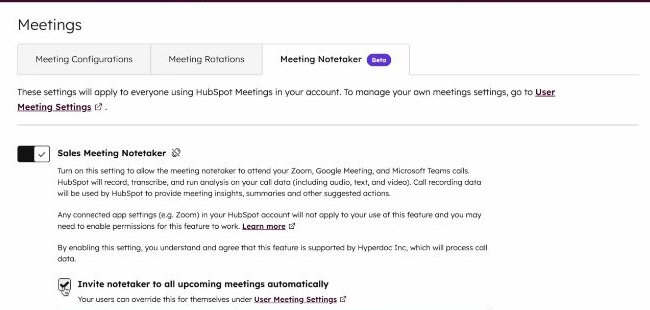
Account setup and personal settings both matter. A Super Admin enables Notetaker for the account, while eligible users can adjust their own auto-join preferences. HubSpot warns that setting changes may not affect meetings starting within the next 30 minutes. When testing a change, allow that interval rather than assuming a meeting about to start will reflect the new setting. Setup and user settings
Early user reports suggest what to test, not a current verdict. In a beta-era r/hubspot discussion, u/GalterStuff praised the connection to CRM records:
“The automated note taking and association with the Company and Deals Objects is great though.” (Original comment)
Another participant, u/MaterialDoughnut, described using it with a four-person team on English-language calls:
“Still a lot of work to do on the summary itself after the call.” (Original comment)
The latter also said summaries couldn't be edited; HubSpot's current instructions now explicitly allow editing them. Another participant reported missed joins despite enabling Notetaker. These individual experiences make attendance, record matching and editing effort useful pilot criteria. They don't establish how the current version will perform on your calls.
How many meetings can each person record?
HubSpot lists 40 meetings per user per day, up to three hours each; the bot leaves after seven minutes of uninterrupted silence. Daily limits don't tell you your monthly transcription allowance. Notetaker limits
HubSpot publishes conflicting monthly limits for Sales Professional. The Sales Hub pricing page lists 750 hours per account/month for Professional and 1,500 for Enterprise. The product catalog shows 1,500 for Sales Professional. The figures cover call transcription per account, not per person. Neither page explains how Notetaker meetings count toward those hours or gives a separate Starter Notetaker allowance.
Ask HubSpot which monthly allowance covers Notetaker and whether phone calls and imported recordings share it. For Enterprise, ask whether the listed 400-hour add-on at $250/month covers that usage.
Is the HubSpot note taker available on Starter?
The October 28 knowledge-base revision lists Sales Hub and Service Hub Starter with an assigned Core seat. That establishes a documented starting point, but it doesn't promise every advanced field feature under every contract. Confirm the specific controls you need before changing your subscription. HubSpot access requirements
Is the HubSpot note taker free for the whole team?
The requirements list paid HubSpot subscriptions and assigned seats, so don't infer team access from a free CRM account. For an existing customer, the practical question is whether current seats and included usage cover the intended setup. Custom-field processing can introduce credit usage even when recording access is already available. Access and credit requirements
Can we test it in a sandbox?
Notetaker isn't supported in HubSpot sandbox accounts, which are separate testing environments. Plan the pilot in your production account with a meeting intended for recording, check the associated records and review any suggested changes before approval. HubSpot sandbox limitation
Will it handle our team's languages accurately?
HubSpot publishes a list of supported transcription languages. Language support alone isn't an accuracy result. Include your usual accents, product names and mixed-language conversations in the pilot, then check whether a colleague could rely on the summary without replaying the entire call.
Does turning off transcription remove old recordings?
HubSpot says existing recordings and transcripts remain accessible when you turn off Transcription and analysis. That switch stops new transcription and Notetaker features; it isn't a deletion control. Confirm the retention and deletion process your team needs separately. HubSpot transcription settings
When should you consider an alternative?
Consider another notetaker when a specific gap remains after checking HubSpot's native settings and your account's access. Fireflies, Otter and Sybill are comparison points for that gap, rather than replacements every HubSpot team needs.
If your team already relies on Fireflies, examine its separate Autofill review-and-send workflow; it requires Business or Enterprise plus AI credits. Our Fireflies overview covers the wider product. Compare it with HubSpot's own manual approval option before paying for overlapping functionality.
If you already use Otter, check whether the CRM-sync user allowance covers everyone who needs it. Our Otter overview provides the broader context. For Sybill, compare its automatic updates to configured deal and company fields with the fields and approvals available in your HubSpot account; the Sybill overview covers the rest of that product.
Keep the comparison tied to a demonstrated need: the required CRM output, the people who need access and the additional cost. A longer feature list alone doesn't show that changing tools will improve your team's work.
Try HubSpot Notetaker on a real customer meeting
HubSpot Notetaker is a sensible first option to evaluate when your team already works in HubSpot and your customer meetings meet its requirements. Its value depends on the result a colleague can use: a useful summary, an assigned follow-up and trustworthy CRM data.
Start with one eligible meeting, then confirm access separately for each person who will record their own calls. Check that the bot joined, the conversation reached the right records and the next action has an owner. Review a field suggestion against its transcript source and note how much correction was needed. Once that works, confirm the team's monthly usage and credit costs before expanding the rollout.
Sources checked October 30, 2026
- HubSpot Notetaker documentation ↗
- HubSpot Hacks: May 2025 beta walkthrough (3:07) ↗
- HubSpot Hacks: May 2025 beta walkthrough (4:08) ↗
- HubSpot Hacks: May 2025 beta walkthrough (3:49) ↗
- Calendar connections ↗
- Incoming recording and transcript sync ↗
- Mobile recording ↗
- External sharing ↗
- Activity sync documentation ↗
- Dynamics sync guide ↗
- Pipedrive connector ↗
- Zoho connector ↗
- Recap API ↗
- Smart Transfer ↗
- HubSpot-Salesforce requirements ↗
- Salesforce mapping guidance ↗
- HubSpot Embed requirements ↗
- API availability ↗
- standard catalog prices ↗
- discounts ↗
- credit rates ↗
- Credit billing controls ↗
- WPWA Digital: February 2026 Notetaker walkthrough (2:13) ↗
- WPWA Digital: February 2026 Notetaker walkthrough (3:03) ↗
- WPWA Digital: February 2026 Notetaker walkthrough (1:29) ↗
- Reddit: u/GalterStuff on CRM record associations ↗
- Reddit: u/MaterialDoughnut on summary editing effort ↗
- Reddit: report of missed Notetaker joins ↗
- 400-hour add-on at $250/month ↗
- supported transcription languages ↗
- Autofill review-and-send workflow ↗
- CRM-sync user allowance ↗
- automatic updates to configured deal and company fields ↗
Want to contribute?
Share your AI sales implementation story with our community